This page explains default CloudPendulum token limits and how to view or request changes.
Default Access (subject to change)
- Experiments: 10 total
- Supported types: Simple Pendulum, Double Pendulum
- Max experiment duration: 10 s
- Bucket size: 5
- Bucket refill duration: 60 s
- Gym access: No
- Validity: From sign‑up date to sign‑up date + 1 month
Check Your CP Token & Compute Status
- In Jupyter, go to File → Hub Control Panel.

Hub Control Panel - Click CP Token and Compute Status. Your compute status appears below your username; your CP tokens are listed below it, separated by two grey lines.
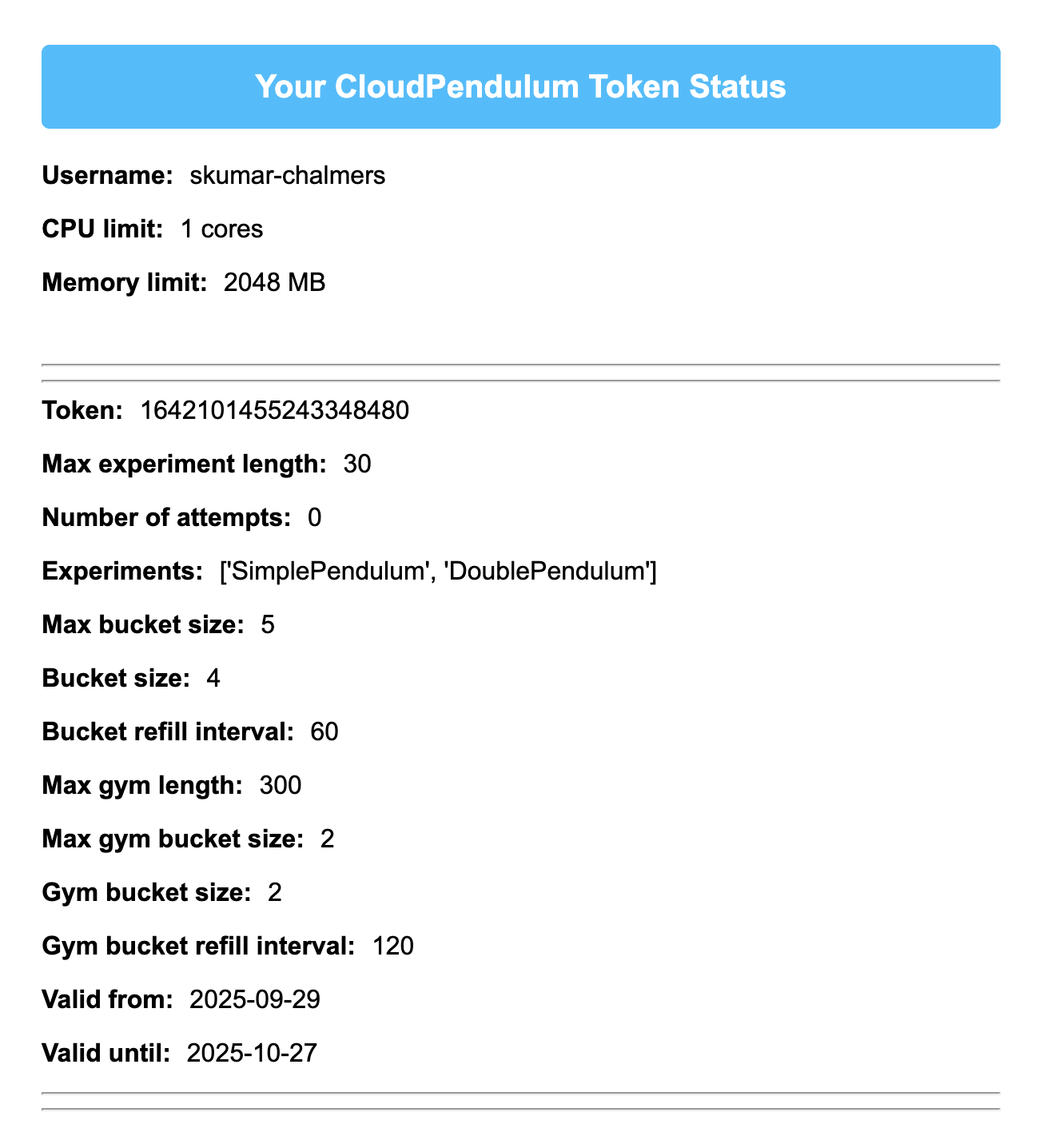
Token and compute status
Request Token Extension
- On Hub Control Panel, Click Extend CP Token.
- Fill in what you need and add a brief justification for why you need more access. Request only what you actually need.
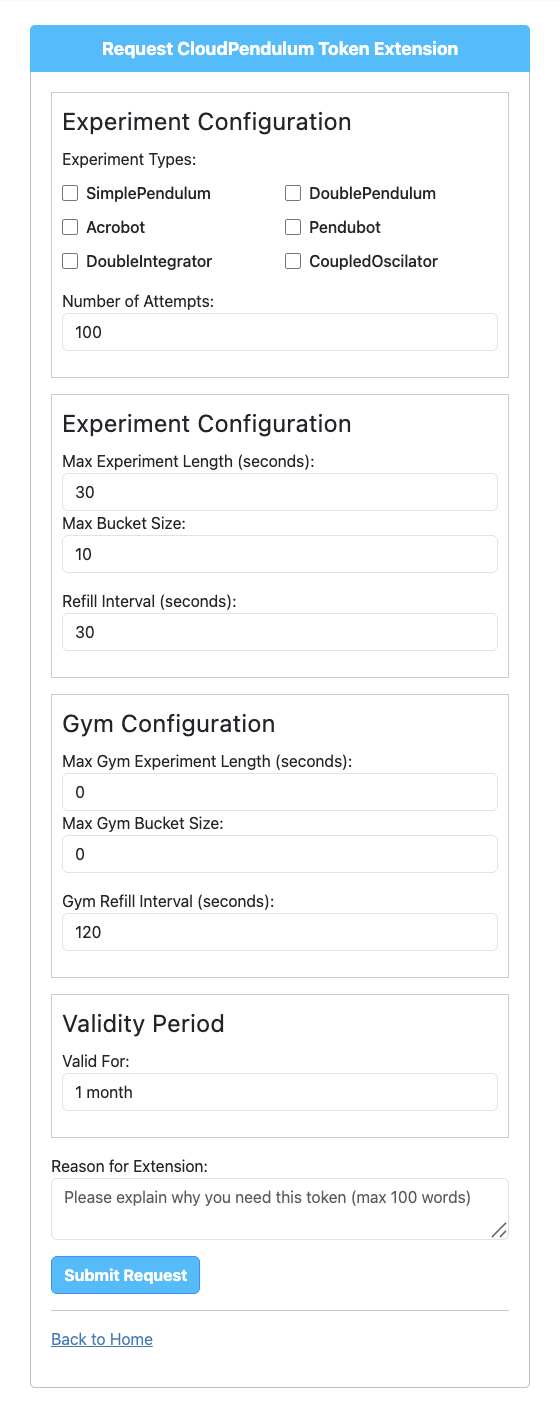
Token extension form - Submit and wait for admin approval. You will be notified by email. Requests may be denied during the pilot phase if not well‑justified.
Request Additional Compute
- On Hub Control Panel, Click Request Compute Extension.
- Explain who you are and why you need additional compute; request only what you need.
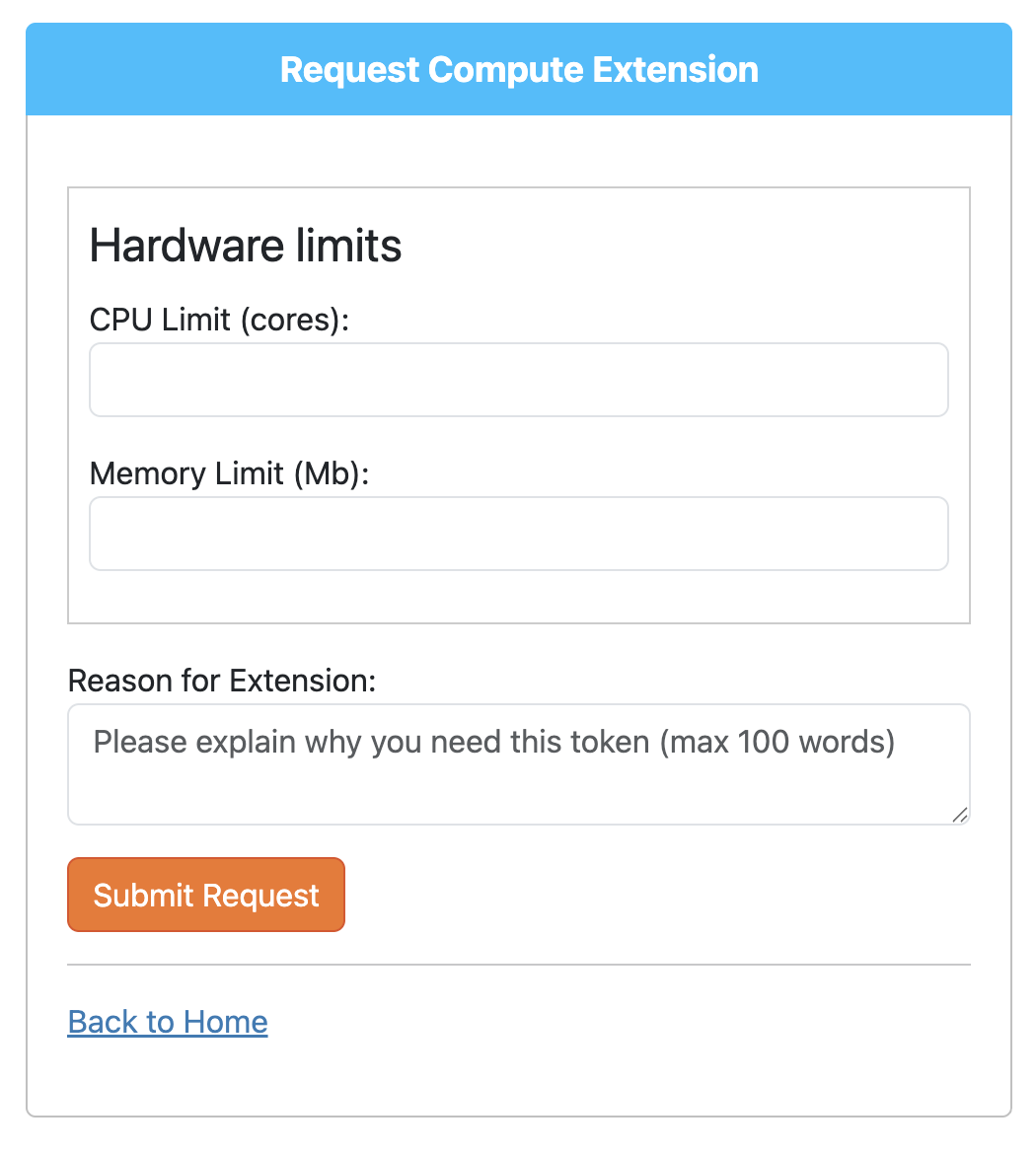
Compute extension request - After approval, a JupyterHub server restart is required for changes to take effect. The server is restarted daily at midnight.
Tip. For general capacity planning guidance, see: https://jupyterhub.readthedocs.io/en/latest/explanation/capacity-planning.html.