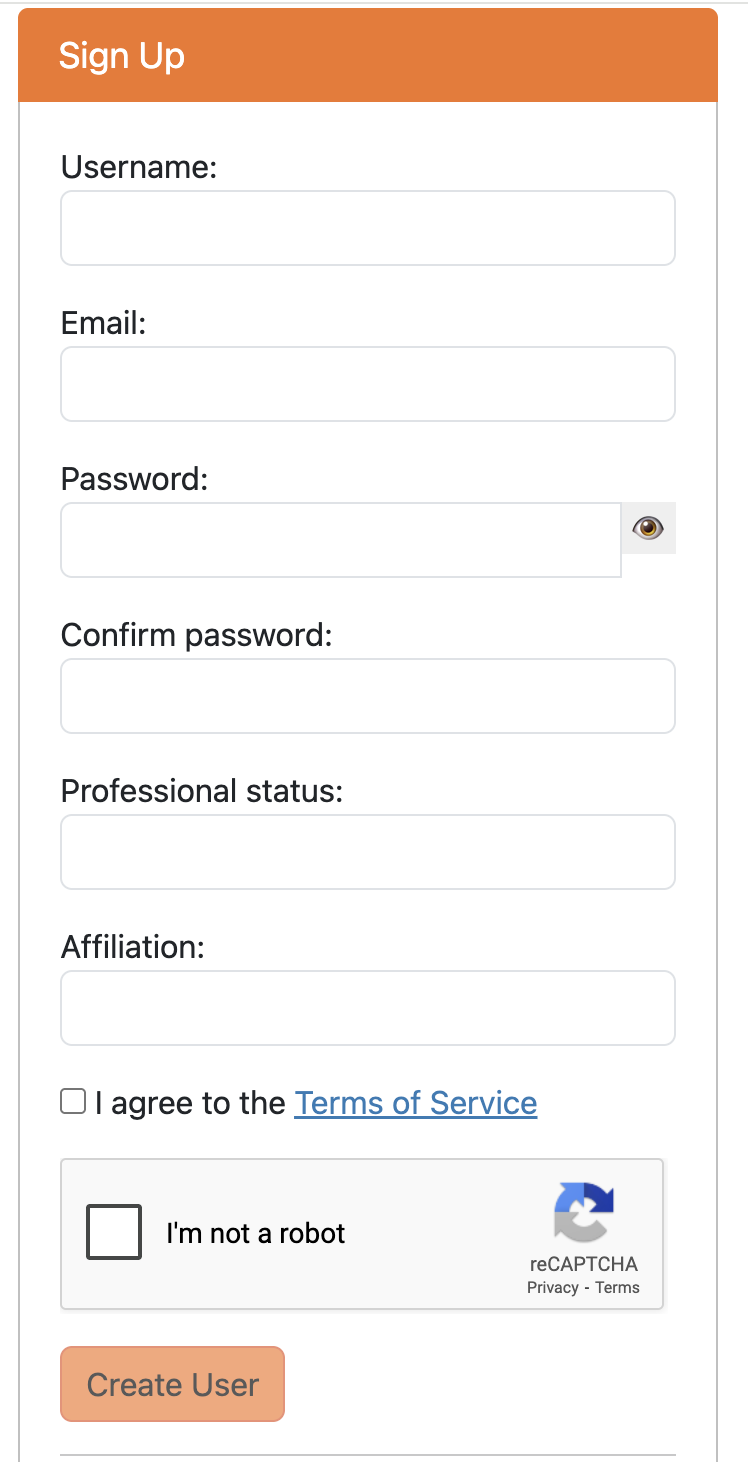
You should select a username, provide your email address (should be valid and verifiable), pick a password. The password should be minimum 10 characters long and not in the list of most used passwords.
You should additionally select your professional status from the drop-down list (bachelor's student, Master student, PhD, Postdoc, Faculty, Industry Professional, Researcher, None of the Above).
Additionally provide full name of your affiliation (e.g., university, company). Ideally, the provided email address should match your affiliation domain.
Kindly go through our Terms of Service carefully and put a check mark on it to confirm your acceptance.
Complete the reCAPTCHA task and click on the Create User button.
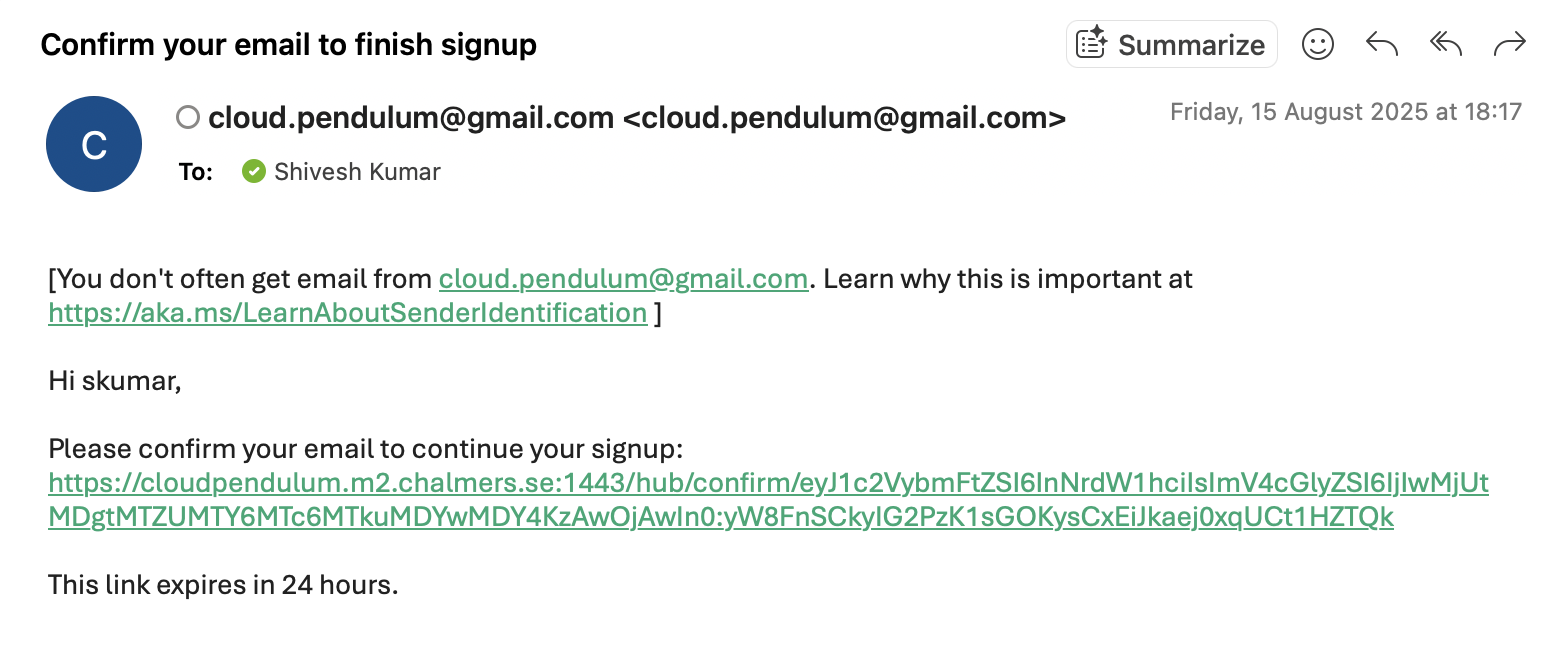
You will then receive an email to verify your signup request. Depending on how agressive is your spam filter, it may land in your junk/spam folder. Please check there if you do not receive it in your inbox within 5-10 minutes. Click on the verification link in your email to verify your email address within 24 hours. Once verified, the CloudPendulum server admin receives an email to approve your signup request.
Verification Email
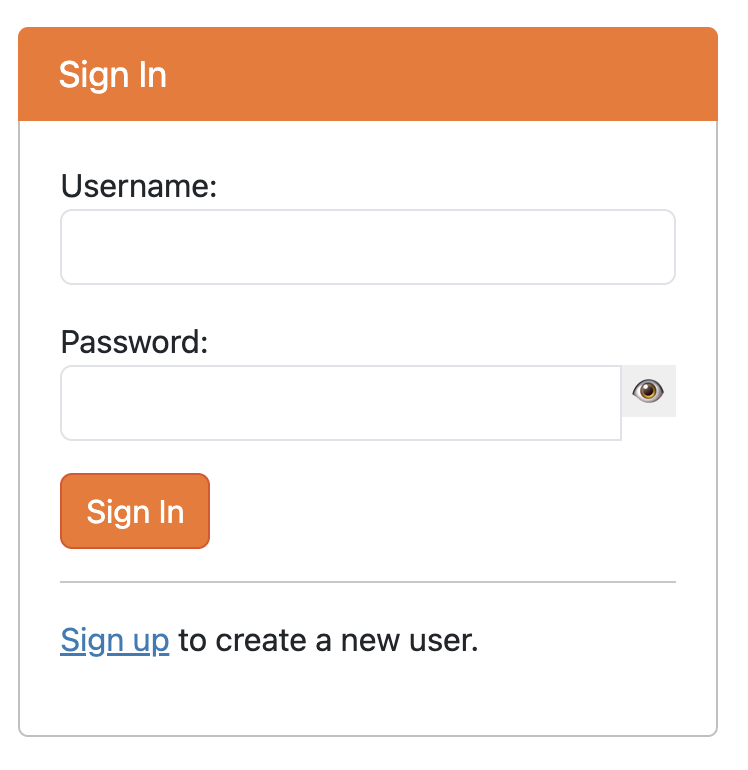
Please wait while the admin approves your account. Once it is approved, you will receive an email confirming the same and you would be able to login to your account via the link here: https://cloudpendulum.m2.chalmers.se:1443/hub/login. Make sure you enter the username and password correctly. After 3 incorrect attempts, your login will be blocked for 5 minutes.
Sign in page
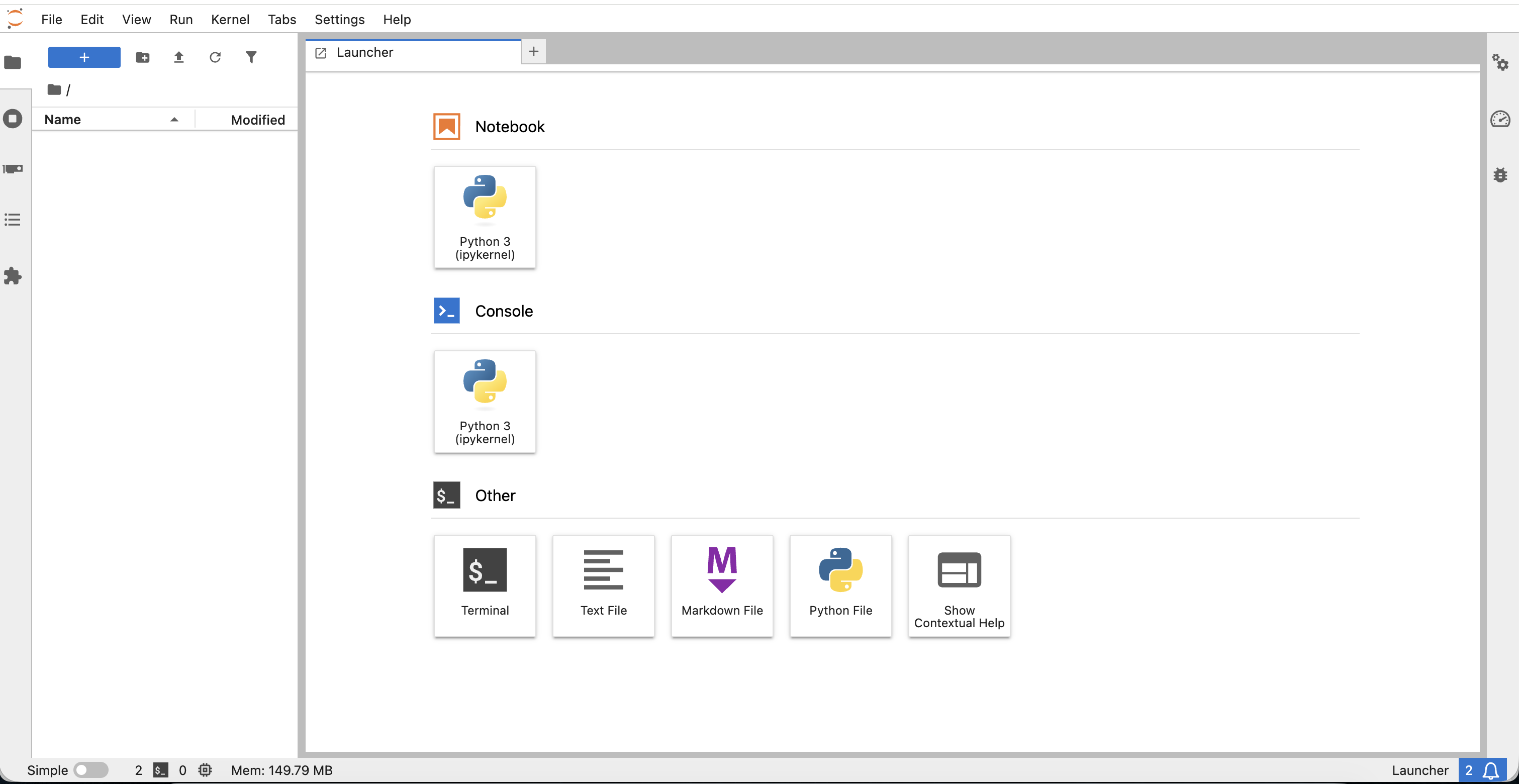
Once you login, you should see a JupyterHub page that looks like this.
Default view after login
Notes:
Everyone gets an empty user account i.e. there are no files in your workspace. You can create your own python project to start working on the system.